

How to Translate a Picture Safely Without Exposing Your Images Online
Google Translate with Google Lens is the best starting strategy for most public, non-sensitive images. It is quick, familiar, and useful for signs, screenshots, menus, and clean manga panels. However, learning how to translate a picture safely means checking what the image contains before uploading it.
A page may expose names, account numbers, faces, addresses, location clues, or hidden metadata. This guide explains how to translate a picture while reducing those risks, improving OCR accuracy, and protecting the reading order of manga text. You will also learn when a local or offline process is safer than an online translator.
1. How to Translate a Picture with the Right Security Level
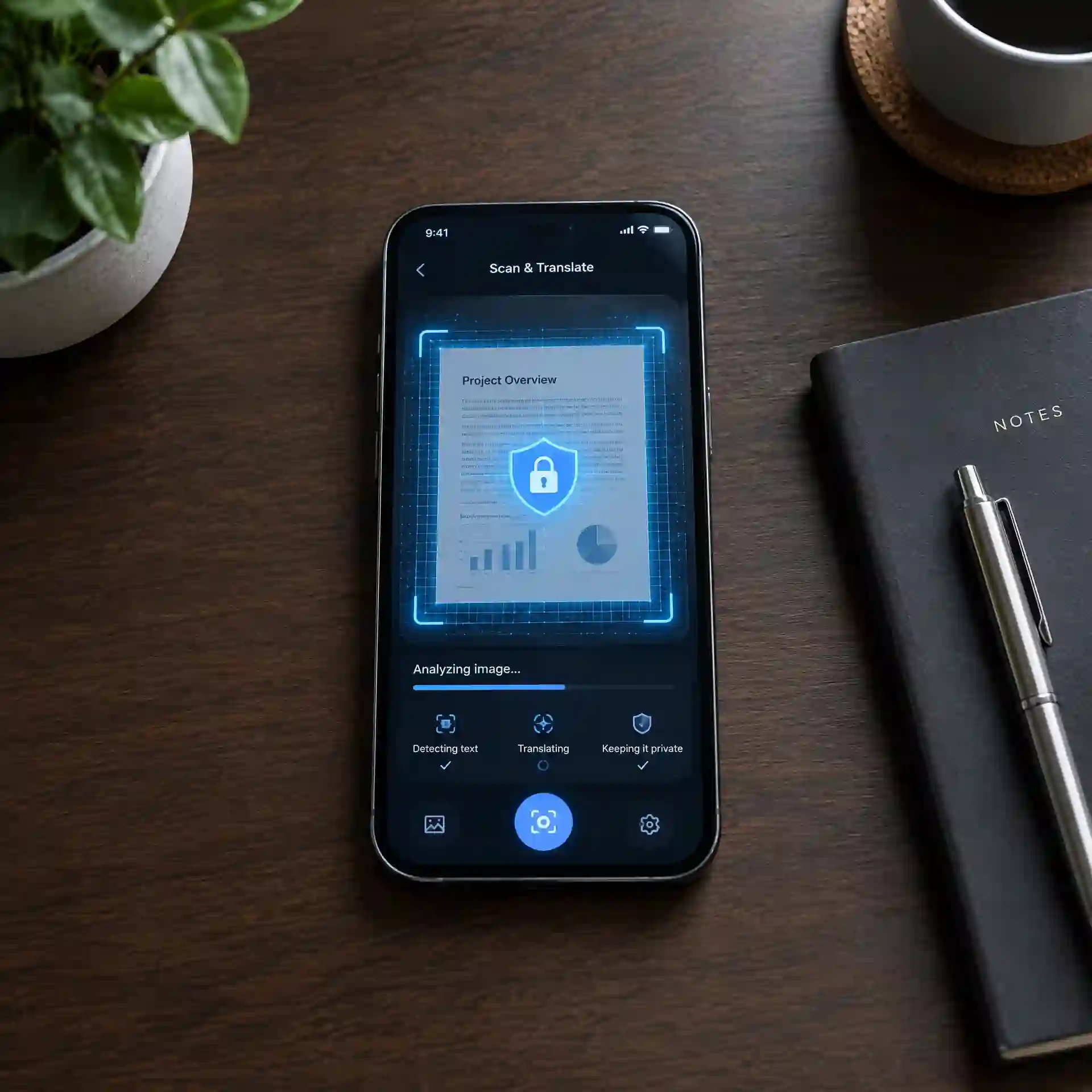
The safest workflow starts with classification, not translation. Before deciding how to translate a picture, label the image as public, personal, confidential, or restricted. A public restaurant menu is low risk, while a private message, unpublished comic page, client document, or account screenshot needs more care. This first step determines whether a cloud service is suitable.
1.1 Check the Image Before You Upload It
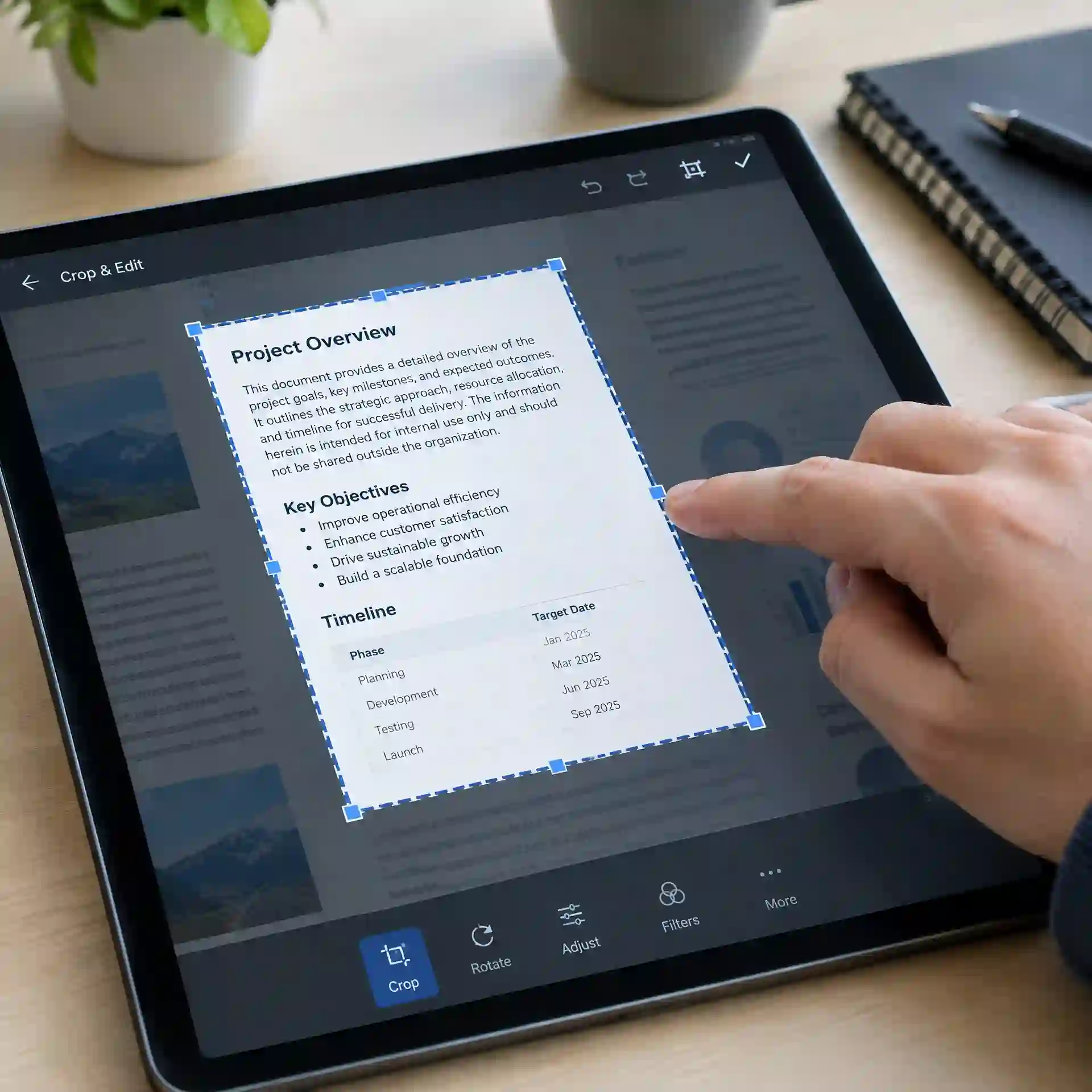
Zoom into every corner of the picture. Look for email addresses, usernames, QR codes, faces, signatures, order numbers, browser tabs, notifications, and reflected information. When you ask, “can you translate a picture,” the real question should also be whether the whole picture needs to leave your device. Crop the image to the smallest useful text area whenever possible.
Learning how to translate a picture also requires checking image metadata. A phone photo may contain the capture time, device model, and GPS location. Take a clean screenshot of the cropped area or use a trusted metadata removal feature before uploading sensitive material. Do not assume that changing the file name removes hidden data.
This walkthrough shows how to translate a picture with Google Lens while selecting visible text instead of manually typing it.
1.2 Match the Tool to the Risk
Use Google Lens or Google Translate when you need speed and the content is already public. A browser-based image text translation tool can also work for a menu, product label, or shared promotional image. If the picture contains private data, use on-device text recognition, offline OCR, or a company-approved system. That is the safest answer to how can I translate a picture without sending unnecessary information to an unknown server.

Read the service policy before using ocr photo translation online. Check whether files are stored, used to improve models, shared with processors, or deleted after a stated period. Also confirm whether the connection uses HTTPS and whether account controls allow deletion. Knowing how to translate a picture includes knowing where the file goes.
This m:tel demonstration shows how to extract text from a picture with Google Lens on a phone, a useful first step before translating the recognized text.
1.3 Use a Simple Decision Table
The following table helps you choose how to translate a picture based on content and security needs. “Offline OCR” means text recognition that runs locally, although the later translation step may still need a network connection. Confirm the behavior of the exact app and version you use.
| Image type | Cloud translator | Crop first | Remove metadata | Prefer offline OCR |
|---|---|---|---|---|
| Public sign or menu | ✅ | Optional | Optional | No |
| Published manga panel | ✅ | ✅ | Recommended | Optional |
| Private chat screenshot | Limited | ✅ | ✅ | ✅ |
| Client or work document | Only if approved | ✅ | ✅ | ✅ |
| Account, identity, or payment image | Avoid | ✅ | ✅ | ✅ |
2. How to Translate an Image on a Phone or Computer
The basic process has three stages: OCR detects the characters, translation changes the language, and the interface displays or rebuilds the result. Understanding this chain makes how to translate a picture easier to troubleshoot. An incorrect translation may begin with an OCR error rather than a language error. Always inspect the extracted source text before trusting the final output.
2.1 Translate a Public Image with Google Lens
On a phone, open Google Lens through the Google app, Google Photos, or another supported entry point. Select the image, choose Translate, set the source language when automatic detection is wrong, and select the target language. This is often the quickest way to translate foreign language photo content such as signs and packaging. It also answers can you translate the image without typing unfamiliar characters.
On a computer, Google Translate allows users to choose the Images option and upload a supported picture. The service can display translated text over the image and may provide controls to copy text or download the translated result. This is a direct method for how to translate a picture to English when the source text is clear. Review the upload for private information before selecting the file.
This Instagram example shows how to translate a picture from a screenshot with Google Lens, a useful option when text cannot be copied.
2.2 Improve the Picture Before OCR
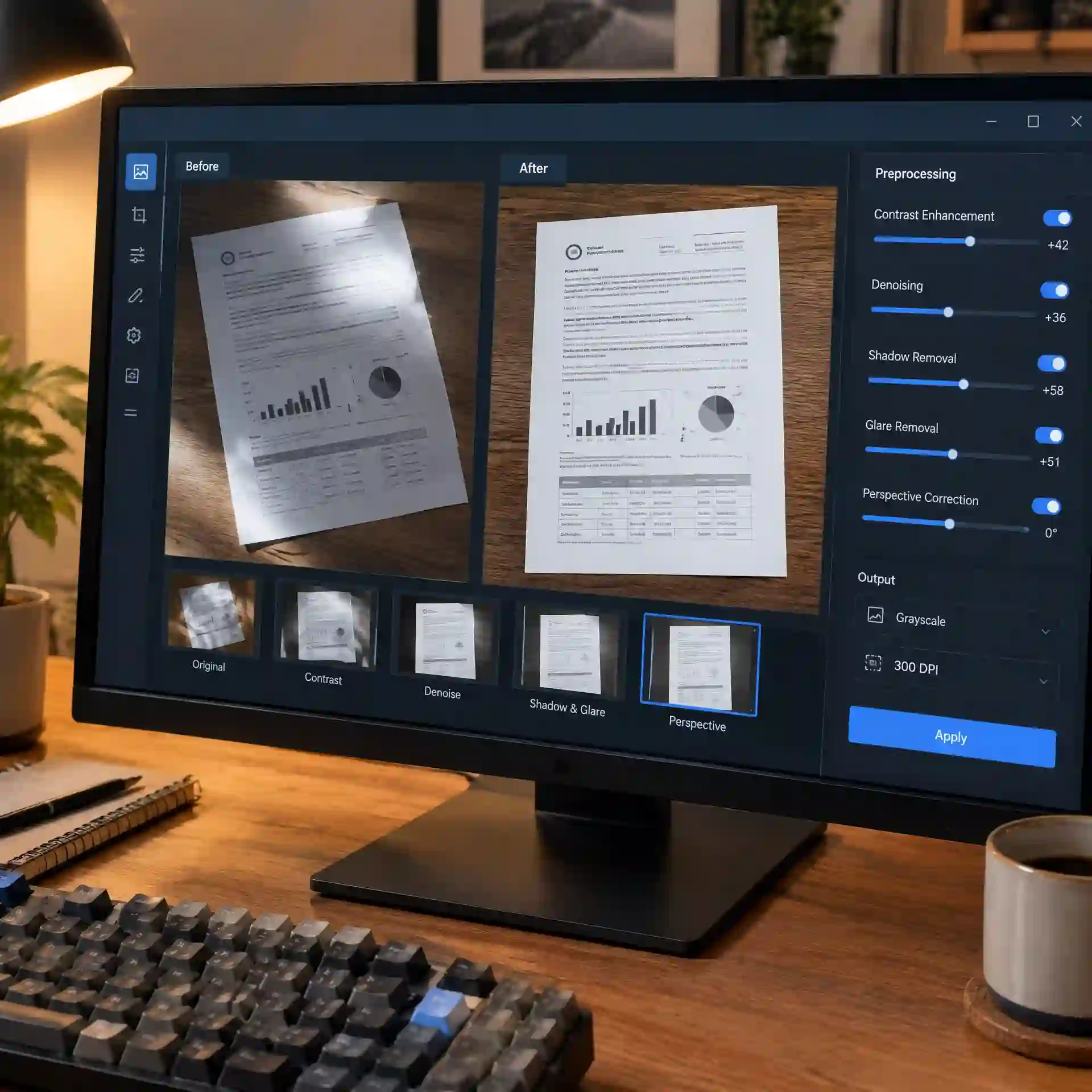
Good input matters more than switching between many tools. To learn how to translate a photo, straighten the image, crop empty space, increase contrast, and make small text larger. Avoid glare, motion blur, strong shadows, decorative filters, and extreme compression. A clean image gives the OCR engine clearer character shapes.
When deciding how to translate an image, separate crowded regions into smaller files. One crop can contain a speech bubble, while another contains a caption or label. Keep enough nearby artwork to remember the context, but remove unrelated personal content. This method improves recognition and reduces the amount of information sent to a service.
2.3 Verify the Source Text First
Copy the detected source text into a plain text field when the tool allows it. Compare names, numbers, punctuation, negative words, and similar-looking characters with the image. This is essential when learning how to translate images because one wrong character can change the meaning of a full sentence. Run a second OCR pass if the extracted text looks broken.
Do not paste passwords, recovery codes, private keys, or full identity records into a visual image language converter. Redaction should happen before the image reaches the translation service. If the sensitive text is the text you need translated, use an approved offline process or ask an authorized human translator. Security takes priority over convenience.
3. How to Translate a Picture with Text in Manga
Manga is harder than a menu because the words are part of a visual sequence. Speech bubbles may be vertical, stylized, curved, handwritten, or placed outside a panel. A general tool can explain how to translate pictures, but it may not understand who speaks first. The reader must preserve panel order and narrative context.
3.1 Mark the Reading Order
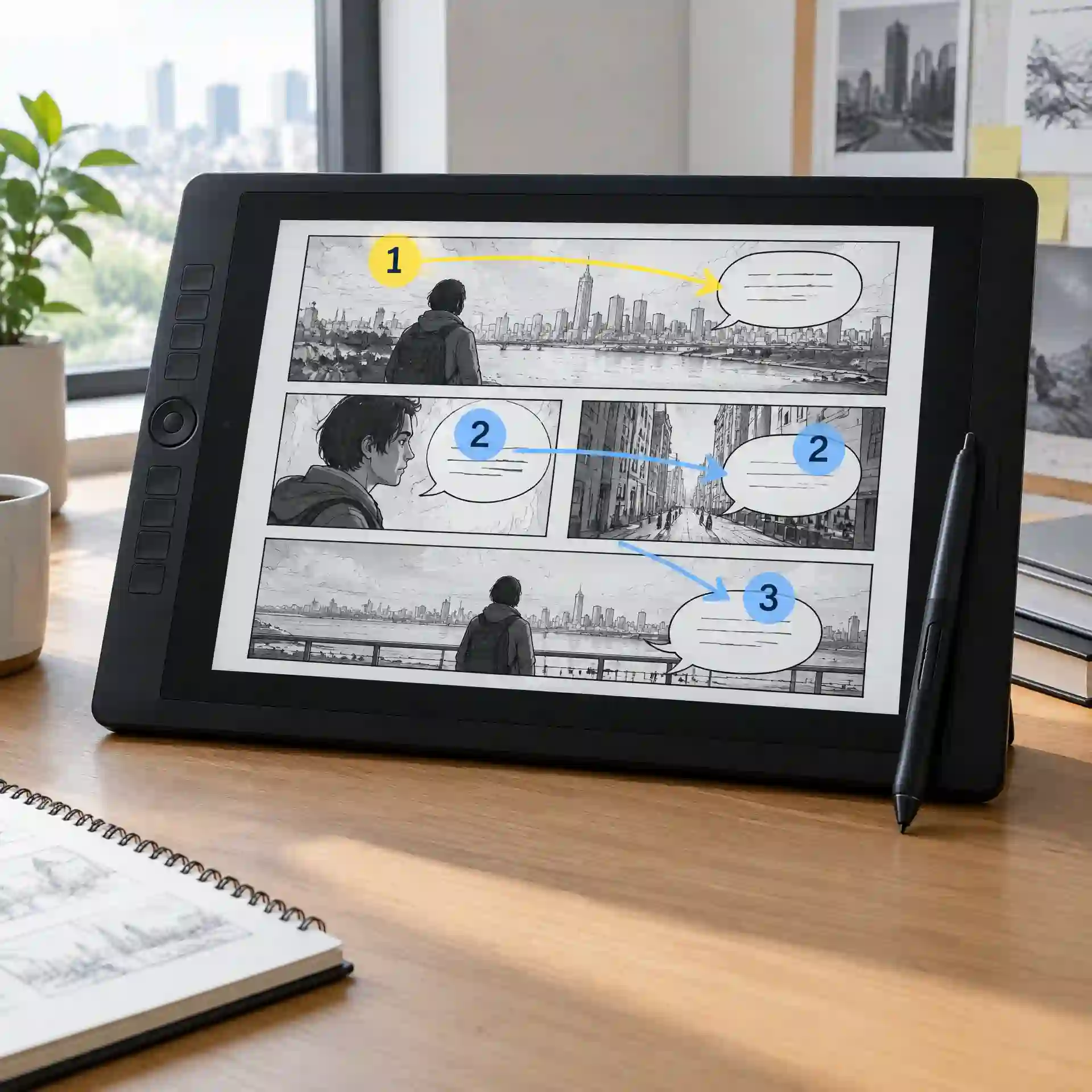
Before running OCR, number panels and speech bubbles in the correct reading direction. Japanese manga commonly moves from right to left, while webtoons usually move from top to bottom. When studying how to translate a picture, record which character owns each bubble. This prevents a good sentence from being assigned to the wrong speaker.
Process dialogue, captions, signs, and sound effects as separate text types. Dialogue usually needs natural speech, while signs may need a literal result. Sound effects often depend on the action shown in the artwork. This distinction is central to how to translate a picture with text without flattening every element into the same tone.
3.2 Crop Without Losing Context
A tight crop improves OCR, but an overly tight crop can remove visual meaning. Keep a working copy of the full page and create separate OCR crops for each bubble. This balanced process is how to translate a picture accurately while limiting the amount uploaded. It also helps you return each translated line to the correct location.
For unpublished art, commissions, or paid digital pages, confirm that uploading is allowed by the creator, publisher, workplace, or platform rules. Do not upload an entire protected volume to a random service. If you only need to understand one passage, process the smallest necessary section. Responsible use is part of how to translate a picture securely.
3.3 Handle Names, Honorifics, and Sound Effects
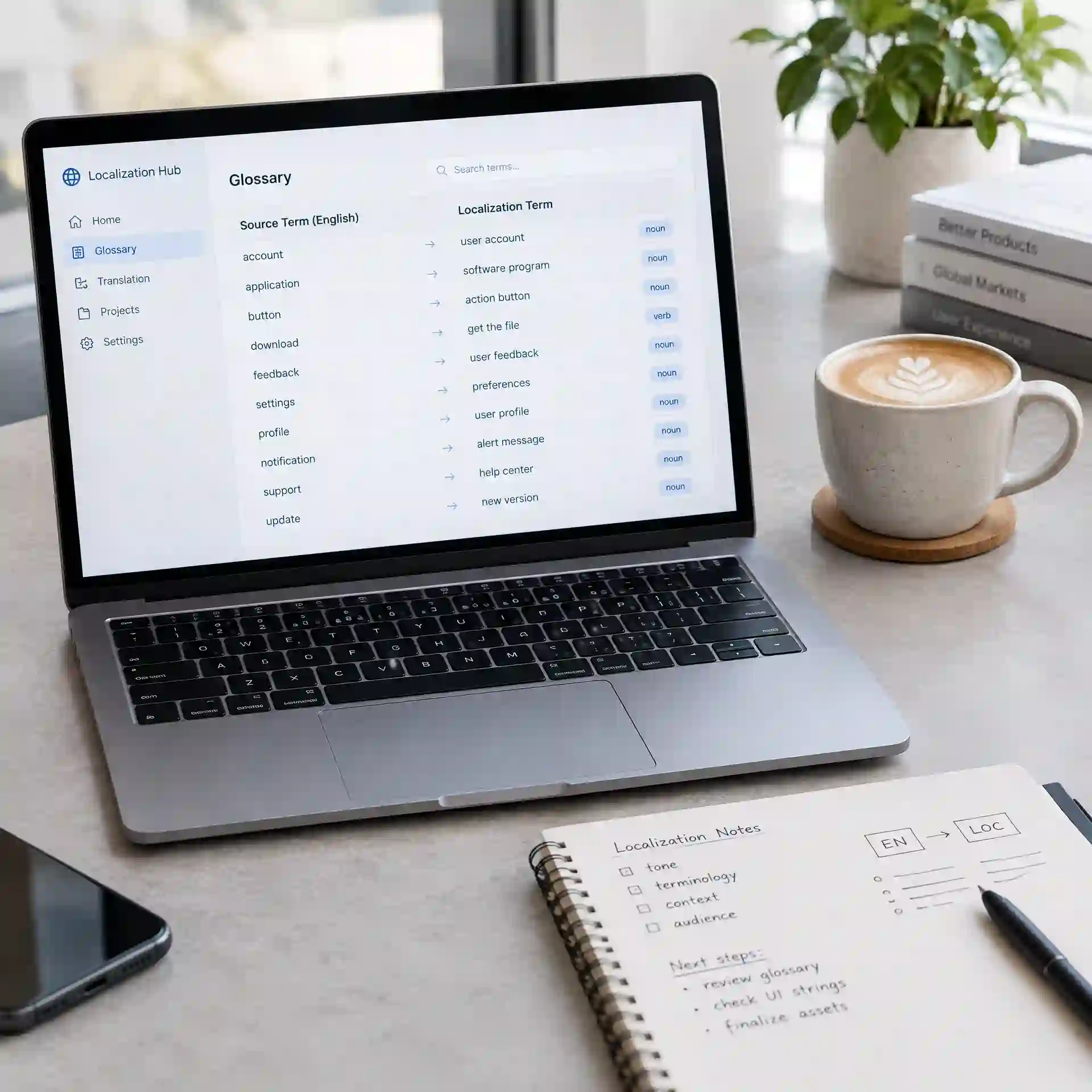
Create a short glossary before translating several pages. Add character names, places, ranks, powers, repeated phrases, and preferred honorifics. A glossary helps an image text translation tool produce more consistent results, even when you must correct the output manually. It is especially useful when you translate foreign language photo sets or a full chapter.
Sound effects should be handled according to purpose. A reader may only need a small note, while a localized release may need redrawing and lettering. Ask how to translate a picture to English in a way that supports the scene rather than replacing every sound mechanically. Keep the original effect visible when its lettering is part of the artwork.
3.4 Protect Drafts and Translation Files
Store source images, OCR text, translated text, and edited pages in separate folders. Use clear file names without personal identifiers, and restrict access when working with unreleased material. If files must be shared, use an approved encrypted channel and remove temporary public links afterward. This keeps the process for how to translate a picture organized and reduces accidental exposure.
Delete unnecessary uploads and local temporary crops when the task is complete. Clear shared clipboard history if it contains confidential source text. Keep only the files you are permitted to retain. A careful cleanup step makes how to translate a picture safer from start to finish.
4. How to Translate Pictures and Check the Result
Machine translation should be treated as a draft. The system does not always know a character’s gender, relationship, mood, or earlier dialogue. When learning how to translate a picture, compare the result with the artwork and surrounding panels. Facial expressions and actions often resolve meanings that one speech bubble cannot.
4.1 Run a Seven-Point Accuracy Check
Check the OCR text, names, numbers, negative terms, punctuation, speaker, and reading order. These seven points catch many damaging errors without requiring advanced language training. If the answer to can you translate a picture is yes, the next question is whether the output is dependable. Mark uncertain phrases instead of silently guessing.
Use a second translator only for doubtful lines, not as automatic proof that the first answer is wrong. Different systems may produce different but valid wording. For how to translate images with repeated characters and terms, consistency across pages is often more important than choosing the most elaborate sentence. Keep a correction log for recurring OCR mistakes.
4.2 Use Reverse Translation Carefully
Reverse translation can reveal missing ideas, but it cannot certify accuracy. Translate the English result back into the source language and compare the broad meaning, names, numbers, and negative statements. This adds a useful check to how to translate a picture, especially for short captions. It is less reliable for jokes, slang, honorifics, and sound effects.
If a sentence affects publication, payment, legal rights, account access, or workplace decisions, do not rely only on ocr photo translation online. Ask a qualified human who understands the source language and context. A visual image language converter is useful for reading assistance, not guaranteed interpretation. This boundary is important to how to translate a picture responsibly.
4.3 Rebuild the Layout Without Hiding Errors
English text may be longer than Japanese, Chinese, or Korean text. Resize the bubble lettering with readable limits, shorten repeated wording, and use natural line breaks. Do not shrink text until it becomes hard to read. Layout is part of how to translate a picture because a correct sentence still fails when it does not fit the scene.
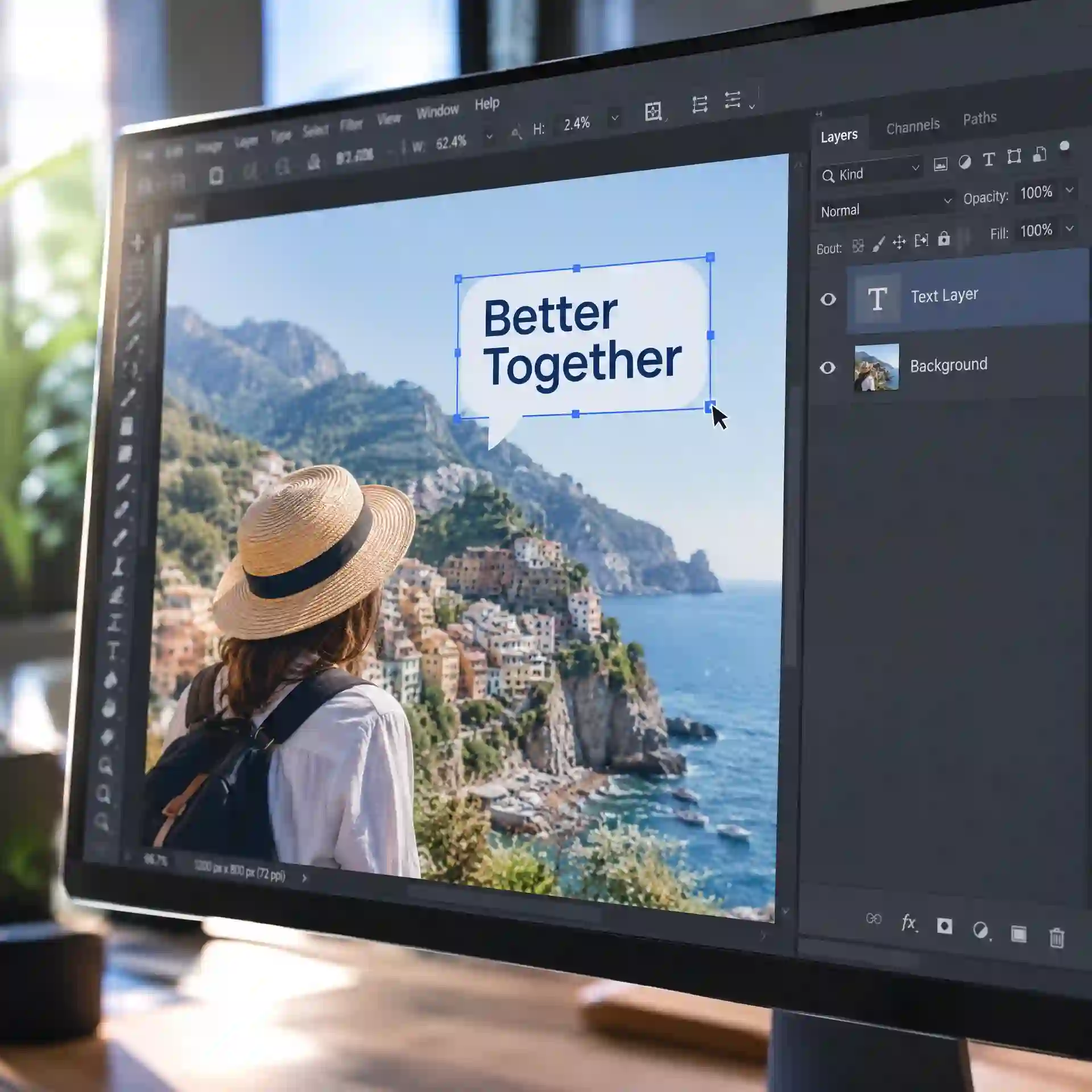
Keep an editable text layer when producing a translated image. It allows later corrections without damaging the artwork. If a service automatically removes source text, inspect backgrounds, faces, and panel lines for visual errors. Save the untouched original separately and never overwrite your only copy.
5. How to Translate a Picture Safely When Tools Fail
If no text is detected, make the crop larger, raise contrast, remove color noise, and try a higher-resolution source. Rotate vertical text correctly and test one bubble at a time. This is often more effective than repeatedly asking how to translate a picture with the same poor input. If OCR still fails, manually enter only the visible text into a trusted translator.
If automatic language detection selects the wrong language, set it manually. Chinese and Japanese images may share characters, and short phrases provide little evidence for detection. For how to translate a picture to English, verify both the source and target settings before reviewing style. A wrong source setting can make a clean image look impossible to translate.
If the result reads smoothly but conflicts with the artwork, return to the source text. Check whether OCR merged two bubbles, skipped a negative term, or followed the wrong panel order. That is the practical answer to how to translate pictures that contain complex layouts. Fix recognition and sequence before rewriting the English.
Security failures also need a clear response. If you uploaded a sensitive image to the wrong service, delete it where possible, revoke public share links, change any exposed credentials, and notify the responsible person or organization when required. Record what was exposed and when. Do not continue uploading more images while testing the same service.
The best way to learn how to translate a picture is to use the smallest amount of data needed for the task. Start with Google Lens for public images, but crop first and inspect every result. Use offline or approved tools for confidential material, and preserve manga reading order during OCR and review. Apply this workflow to your next image now, then use a glossary and security checklist for every page that follows.
References
This CVPR paper examines scene text recognition and translation through language modeling and cross-language visual information. Read the STRIVE scene text recognition and translation paper